Dashboard
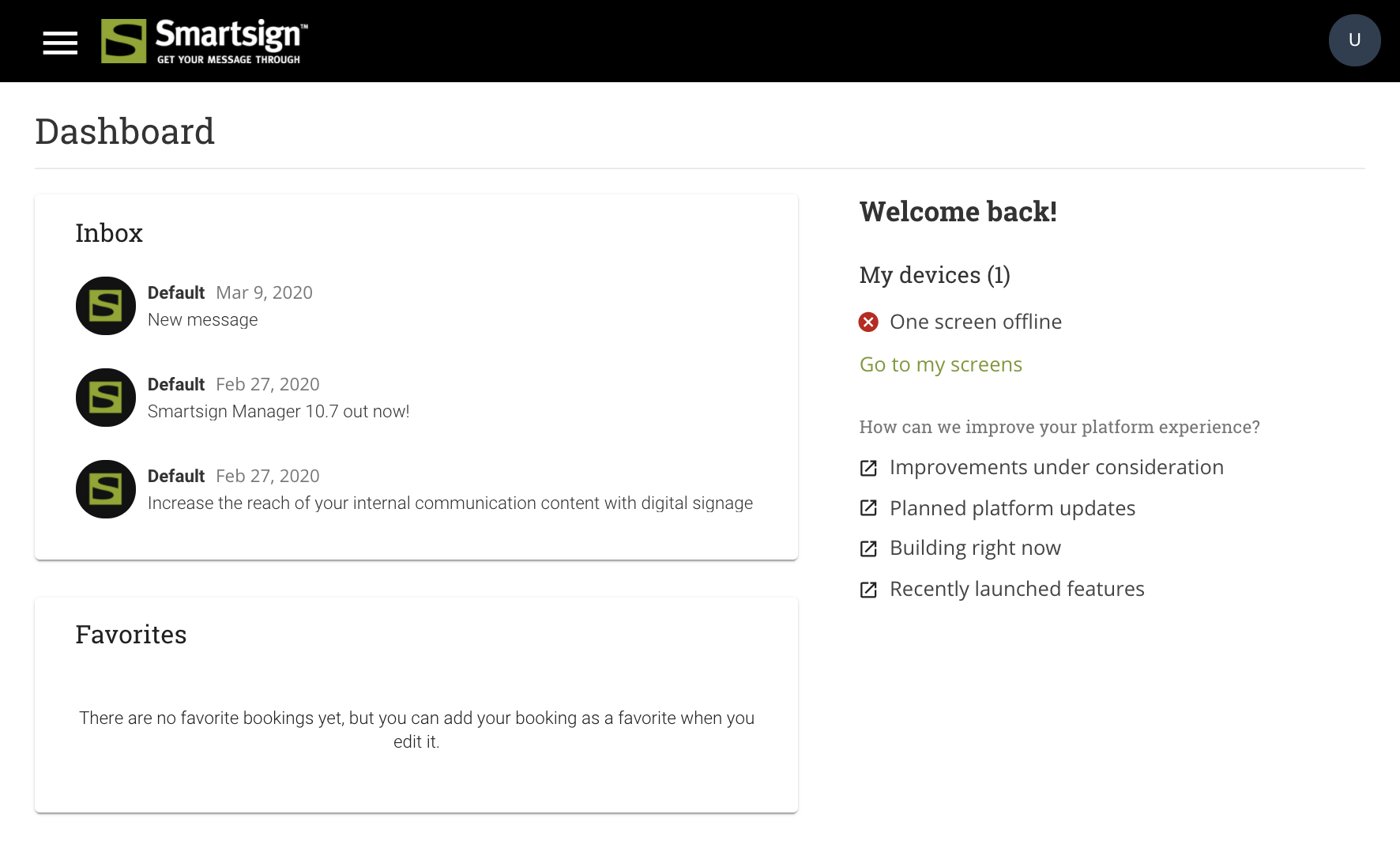
The dashboard provides you with a quick overview. It's where you’ll find
important messages, the status of your screens and other information
relevant for you.
Inbox
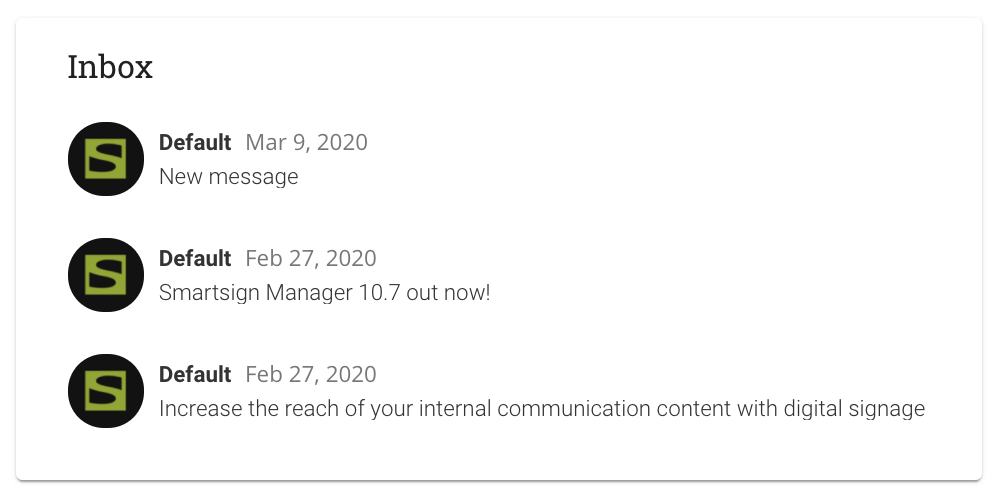
The inbox contains news about the platform. On the cloud version,
Smartsign is the sender, and in the on-premises version it is the system
owner who has the possibility to send items into this feed.
Screen status
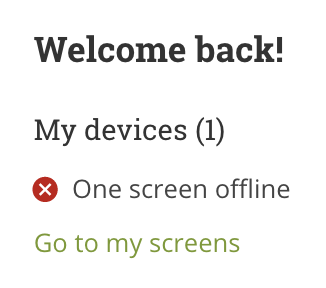
In the dashboard we will show statuses for screens. You can see the number online, offline, screens that recently went offline and screens who are lacking a license. This feature can be toggled individually by enabling either permission under Screens in User profiles. Additionally this feature has a link to register new screens and this link is only visible if the user has the permission to register new screens, which can also be toggled under permissions; Screens / Edit.
Product feedback
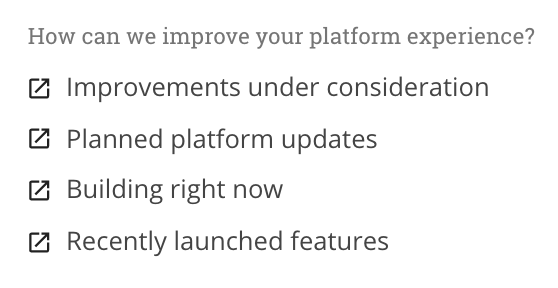
Provides links for contributing to the further development of the
platform. The links cannot be changed, but it's possible to hide them
using permissions.
Permissions
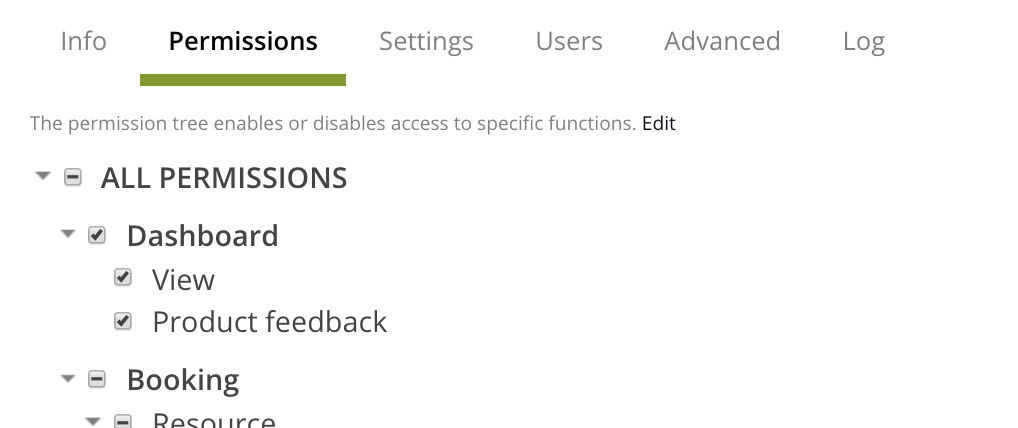
The dashboard is automatically set as the default starting page for for any user of the cloud service as well as for new installations on-premise.
For on-premise upgrades it may need to be activated manually after upgrading. Enabling or disabling the dashboard is done using the Dashboard: View permission in the user profiles.
- Go to Management → Users → User profiles
- View the user profile that you want to change
- Select the Permissions tab. Adjust the Dashboard permissions as desired.
- Save
On-premise news feed
For on-premise installations, a system feed will be automatically created for you in the root site. It will be named the same as the root site.It's possible to customize the feed and add a logo if desired.
- Go to Management → Content → Feeds
- Select the feed and click View
- Adjust as desired and then Save